Compared ·
AI Pet Video Generators Compared: Which One Fits Your Video
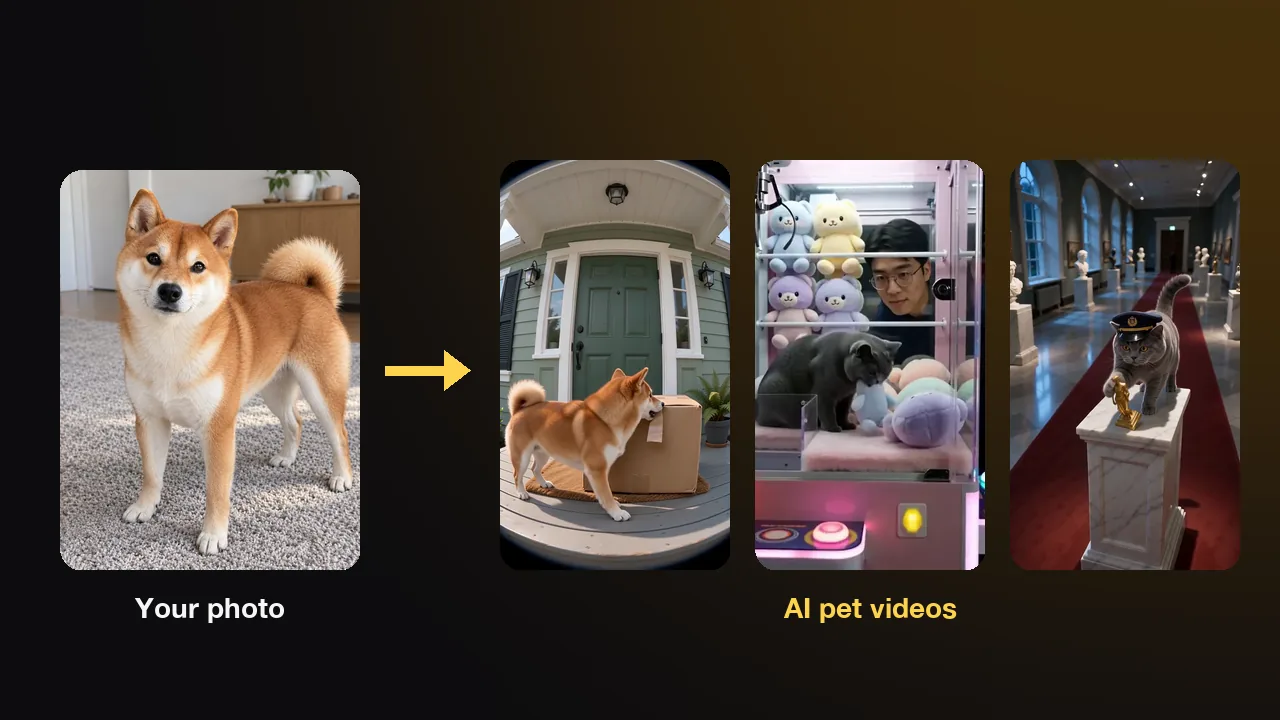
AI pet video generators come in three kinds. Effect apps put one photo of your pet into a set trend, and story apps build a short scene around your pet. General AI video tools make any scene you can describe in a prompt. We make AIPet, one of the story apps, so this guide also says where ours is the wrong pick.
What kinds of AI pet video generators are there?
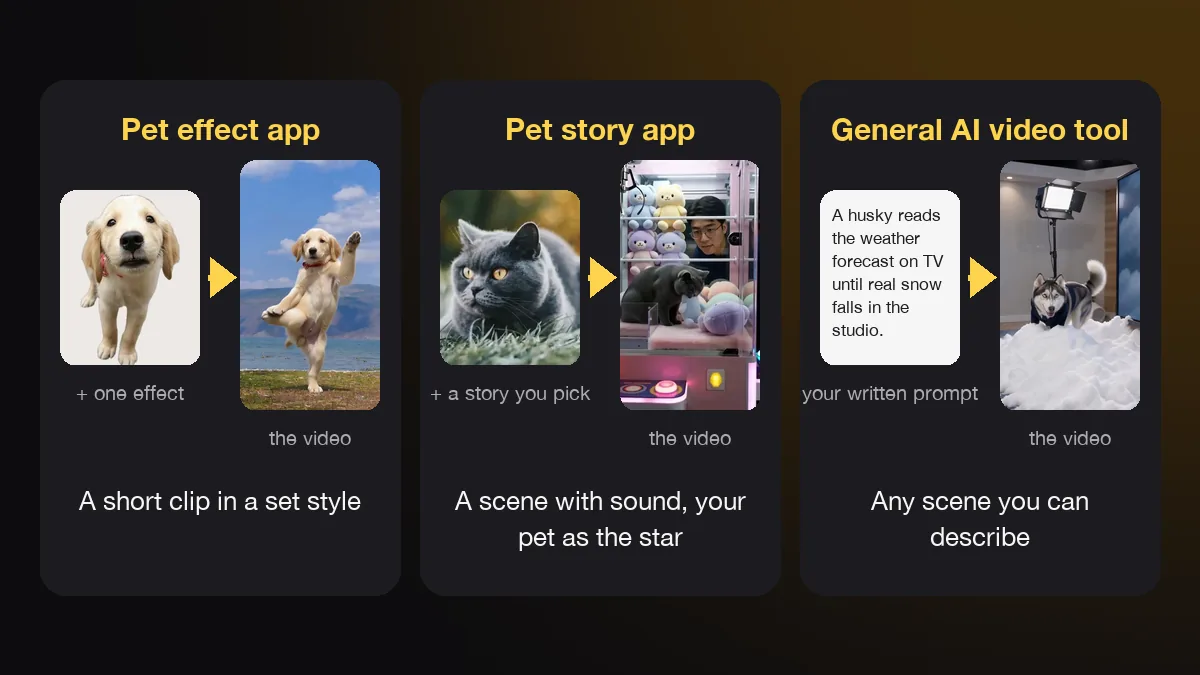
There are three kinds worth knowing: pet effect apps, pet story apps and general AI video tools. The first two start from your pet's photo and need no prompt. The third takes a photo and a written prompt, so it can make almost anything, but you do the writing and the retries yourself.
| Kind | You give it | You get | Your effort | Good for |
|---|---|---|---|---|
| Pet effect app | One pet photo and one effect | A short clip in a set style, such as a dance or a giant pet | Tap and wait | A quick trend clip |
| Pet story app | One or two photos and a story you pick, or a one-line idea | A short scene with camera moves, sound and music, with your pet as the star | Pick and wait | A funny or sweet film of your own pet |
| General AI video tool | A photo and a written prompt | Any scene you can describe | Write, test and rewrite | Full control, or scenes with no pet |
The real difference is who writes the prompt. In a pet app, the team behind it wrote and tested the prompt for each effect or story, so you only add a photo. In a general tool you write the prompt yourself, and a good one for a realistic pet clip often runs 60 to 100 words about fur, paws, light and camera.
The engine underneath can be the same. Many pet apps run on the same video models that you can open directly. AIPet, for example, routes each shot by job: Seedance 2.0 for action, Kling for long takes, Google Veo 3.1 for cinematic light and MiniMax H3 for talking scenes. What a pet app adds is the tested prompt, the way it handles your photo and the checks before a template goes live.
Talking-photo apps are a fourth group with their own trade-offs, such as using your own voice. We cover them in talking pet apps compared. This guide sticks to apps that make a new video of your pet. Most people with one photo and no prompt start with the pet apps, so that is the next section.
Which pet apps turn one photo into a video?
Pet.Video, DreamFace, WigglePet and AIPet all start from a single photo of your pet, and each one makes something different. The notes below come from their own websites and store listings on November 3, 2026. Prices change often, so check the current price before you pay.
- Pet.Video: a web app with more than 50 effect templates, such as dances and giant pets. New accounts get 30 credits, enough for one 5-second 480p video, and paid plans start at $108 a year for 300 credits a month.
- DreamFace: a web and phone app that adds small movements to a pet photo, such as a turn of the head. Its Pet Lip Sync option moves the mouth to a script or an audio clip. The tool page lists no prices.
- WigglePet: an iPhone and Android app that animates the whole body, so a pet can dance, sing or talk. Its site offers a free image trial.
- AIPet: a browser tool with more than 60 story templates, talking-pet clips, dance and TikTok trend formats, and a maker that turns your own one-line idea into a 5, 10 or 15-second video. One watermarked 720p preview is free, a single film starts at $2.99, and Pro costs $19.99 a month for 1,000 credits.
The fairest test is the same photo in each app. Use one sharp, front-facing photo, make one clip in every app you are curious about, and watch them side by side. Look at the coat and markings first, then the motion, then the sound, then the watermark on the free version.
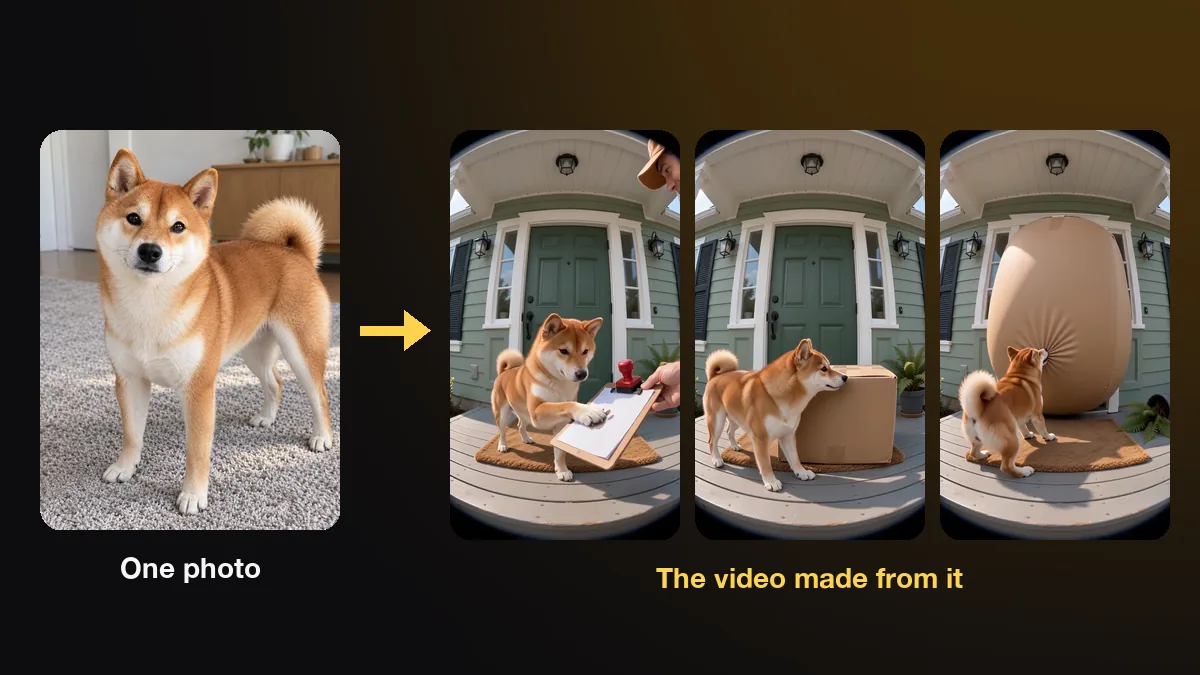
Effect apps are the quickest path to a recognizable trend, because the format is fixed and everyone knows it. Story apps suit a scene with a start and an end, such as a dog on a delivery run or a cat in a museum. Some AIPet stories also put you in the film next to your pet, which needs a photo of you as well.
AIPet is the wrong pick in three cases. If you want the clip in your own voice, a photo lip-sync app does that and we don't. If you want your pet to sing, our lines are spoken, not sung. And if you want an app from the App Store, AIPet runs in the browser instead. When no set format fits the scene in your head, a general AI video tool is the next step.
When is a general AI video tool the better pick?
A general AI video tool is the better pick when you want a scene that no template offers and you are ready to write and rewrite prompts. Kling, Google Flow with Veo 3.1, Runway and Hailuo all turn a photo and a text prompt into a short clip, and none of them is built around pets.
Here is how each one starts, from their own pages on November 3, 2026:
- Kling: a free Basic plan with no monthly credits. Standard costs $6.99 for the first month with 660 credits a month, then renews at a higher price.
- Google Flow with Veo 3.1: 50 free credits a day. Google AI Pro, at $19.99 a month in the US, adds 1,000 credits a month. A Veo 3.1 Fast clip costs 20 credits and an 8-second Quality clip costs 100.
- Runway: 125 free credits, once. Standard costs $15 a month for 625 credits.
- Hailuo: the video app from MiniMax, the company behind the MiniMax H3 model that AIPet uses for talking scenes.
What you gain is control. You choose the camera, the light, the length and every action, and you can make scenes with no pet in them at all. What you give up is time. Each try costs credits, and a clip with the right look often takes several versions.
Likeness is the other trade. A general tool has no idea which parts of your photo matter, so a tabby can come back with different stripes. A prompt that names the breed, the coat colour, the markings and one action, filmed in one continuous shot, helps a lot.
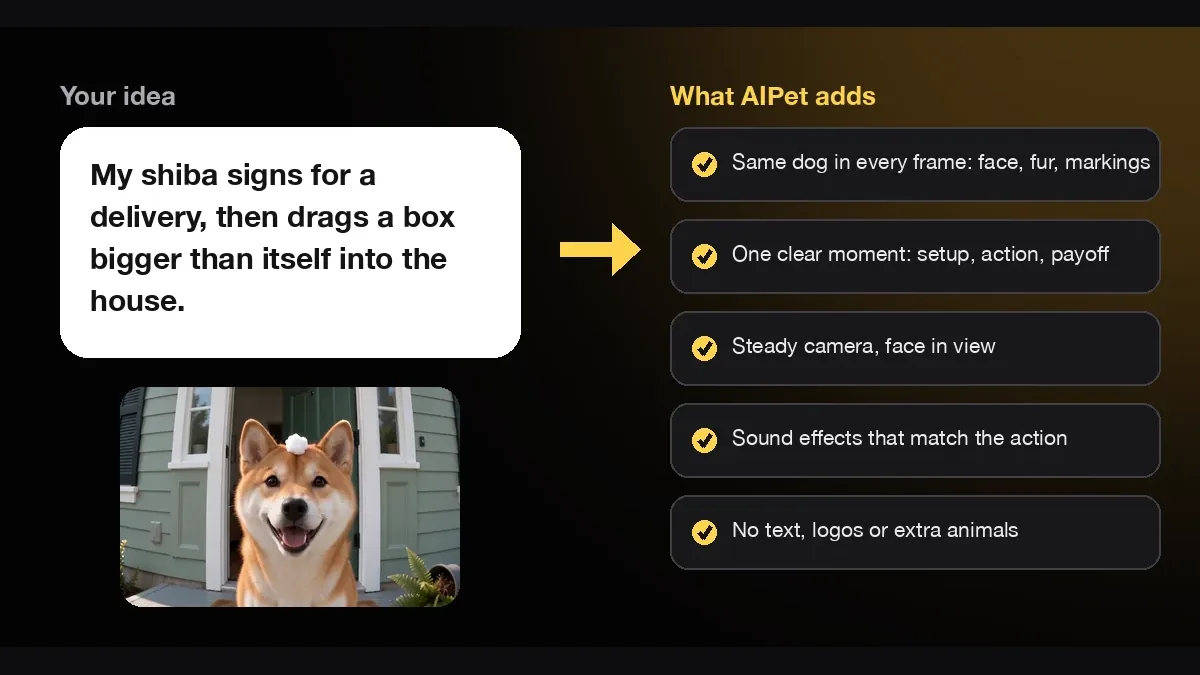
There is a middle path. In the AIPet idea maker you write one line, such as "my shiba signs for a delivery with its paw, then drags a box bigger than itself into the house". We turn it into a full shot plan with your pet's coat and markings in every shot. You can write your own pet video idea and skip the prompt writing. Whichever kind you choose, the first thing to check is whether the pet on screen is still yours.
Will the video still look like your pet?
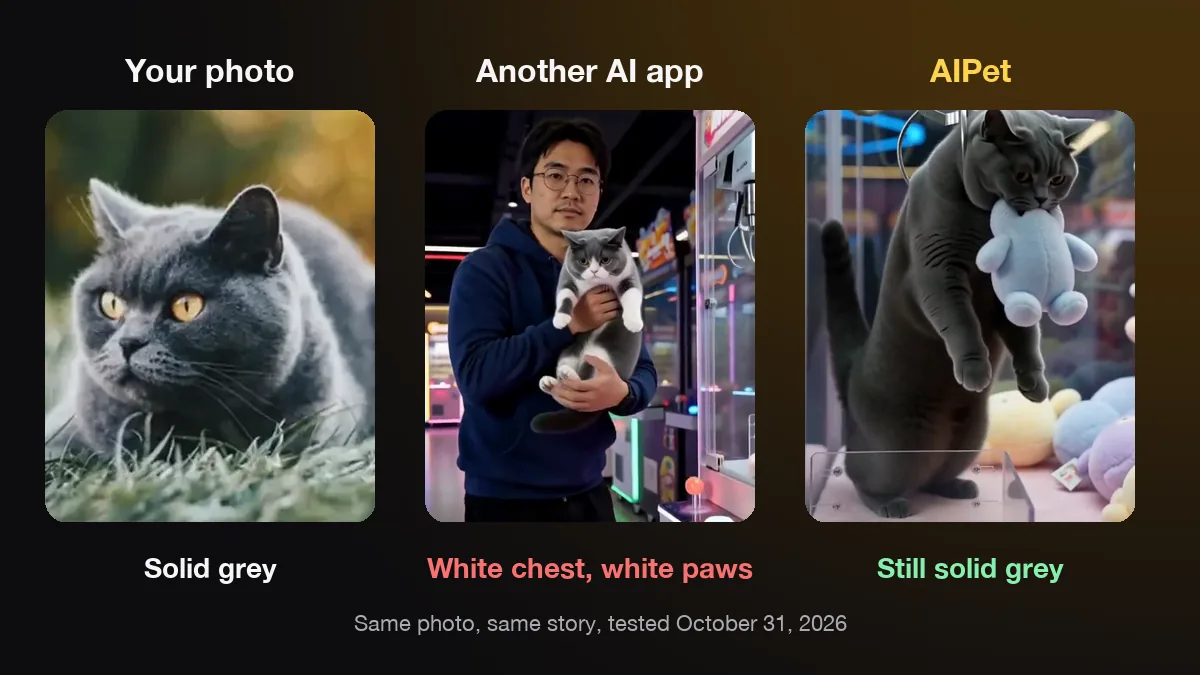
Not always. Likeness is where AI pet videos fail most often, and it differs from tool to tool. On October 31, 2026 we gave the same owner and pet photos to another AI pet video app and to AIPet. We ran three tests and compared a few seconds of each result.
- Pet likeness: a solid grey British Shorthair came out of the other app with a white chest and white paws. AIPet kept it solid grey.
- Scene logic: a brindle French Bulldog floating up on balloons was outside a plane window in one shot and sitting inside the cabin in the next. The AIPet film kept one story from the yard to the window.
- Owner likeness: in a birthday film, the other app made the owner look older and less like the photo. AIPet kept the same face and the same age.
Three tests are not a benchmark. We picked these because they show the three most common failures, and our own renders fail too. When an AIPet render fails, the credits come back, and every template's sample is checked by hand before the template goes live.
Likeness drifts for a simple reason. Many models treat your photo as a style hint, not as an identity, so they redraw the pet as a typical member of its breed. Rare markings, odd ears and eye colour go first. In a story with several shots, the pet is redrawn in every shot, so the error can grow from shot to shot.
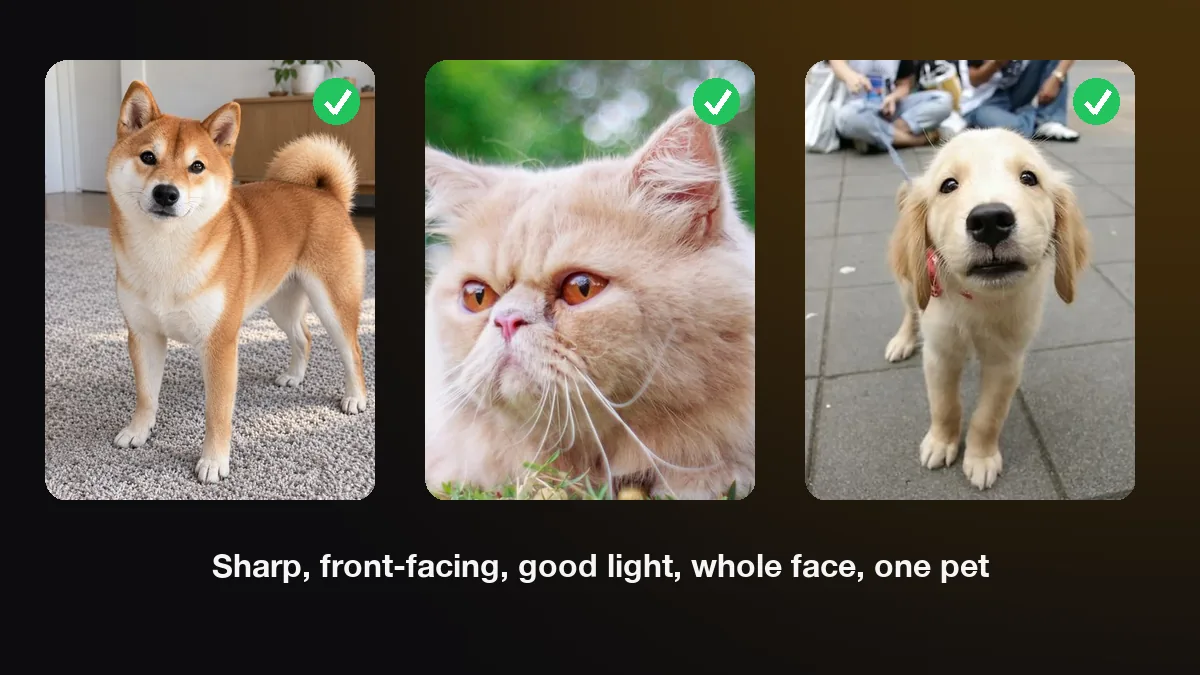
You can check likeness in a minute. Pause the video on a clear frame and compare it with your photo: coat pattern, eye colour, ear shape, the colour of the paws. Then pause on the fastest move, because that is where the pet changes most. A better photo helps every tool: sharp, front-facing, good light, the whole face visible and one pet in the frame. Looking like your pet is one test, and looking real is another.
Which AI pet video generator looks the most realistic?
The most realistic clips come from the newest video models, such as Seedance 2.0, Veo 3.1 and Kling. So realism depends more on the model and the prompt than on the app's name. In every tool, a simple everyday action filmed in one continuous shot looks more real than a busy scene with many cuts.
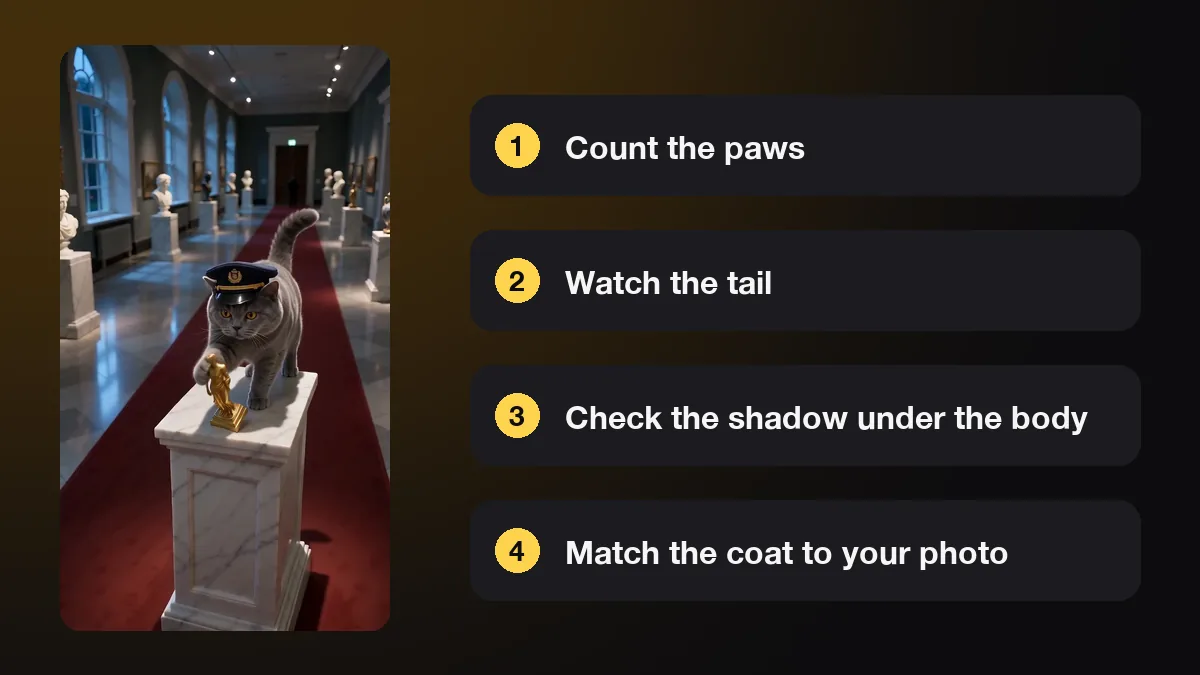
Realism breaks in a few places again and again. Watch for a fifth paw or a leg that melts into the floor. Also look for a coat pattern that changes during a turn, a background that bends, and water or snow that moves the wrong way. Talking clips add one more: a mouth that moves in a way no dog or cat can.
Light and physics give a lot away. MIT Media Lab's Detect Fakes project notes that AI video may fail to represent the natural physics of a scene, so shadows and reflections are worth a close look. It also says no single sign proves anything. For pets, check the shadow under the body and the way fur reacts to wind or water.
Four habits make any tool look more real. Ask for one action, not three. Keep the camera at your pet's eye level, like a phone held by its owner. Ask for natural light. And keep clips short, 5 to 8 seconds, because errors pile up the longer a clip runs.
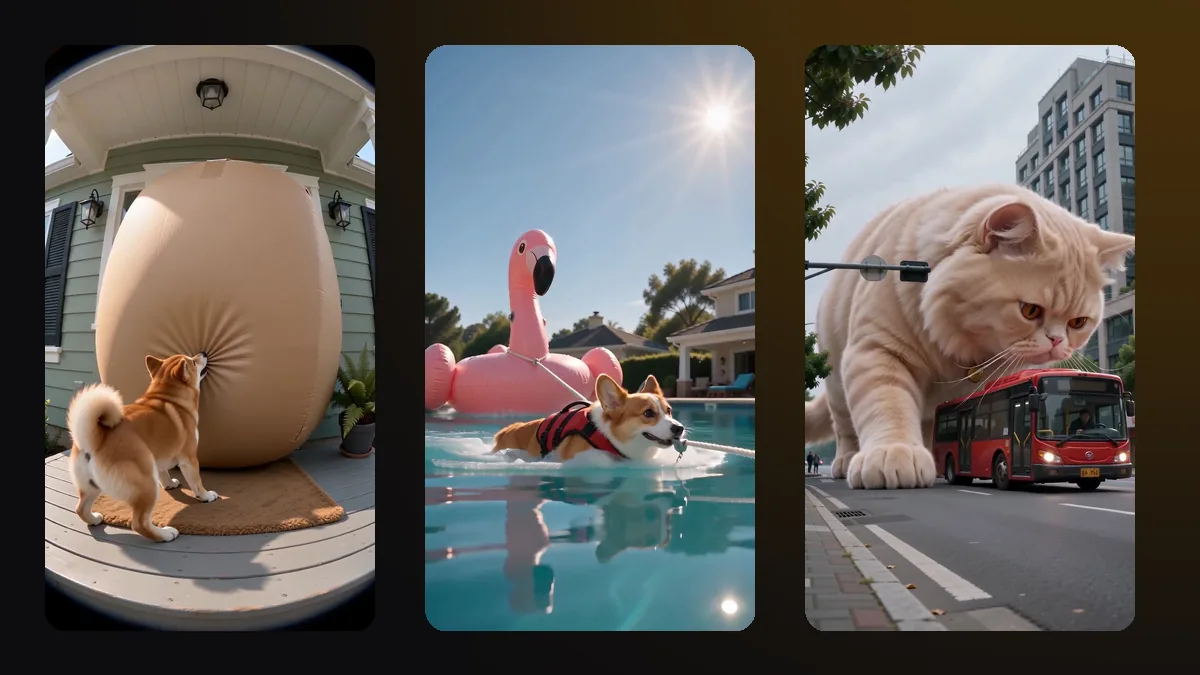
AIPet keeps your pet looking like a realistic version of itself rather than a cartoon. Many of our templates then put that realistic pet into an unrealistic situation, such as a giant cat next to a city bus, because that is the joke. For a quiet moment that looks like real home footage, write a plain idea in the idea maker or use a general tool with a careful prompt. With those checks in mind, the right tool comes down to what you want to post.
Which AI pet video generator should you pick?
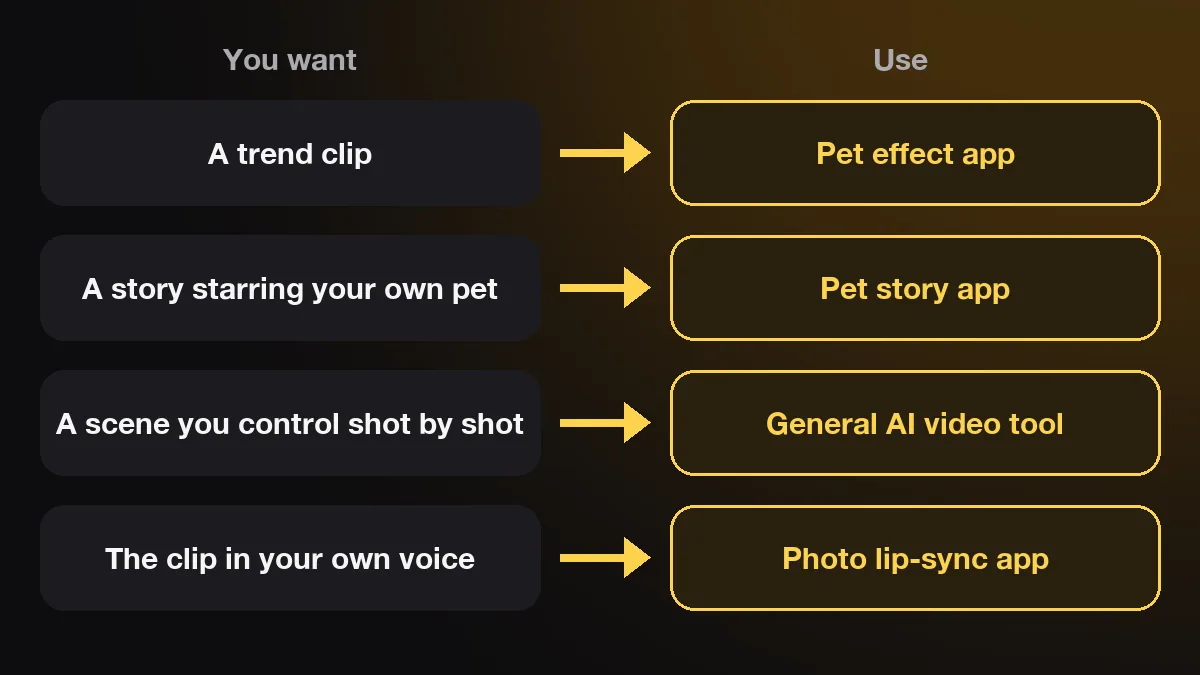
Pick by the video you want to post. For a trend clip, use a pet effect app. For a short story starring your own pet, or you and your pet, use a pet story app such as AIPet. For a scene you want to control shot by shot, use a general AI video tool. The table shows what each costs to start.
| Tool | Kind | Free to start | Paid from |
|---|---|---|---|
| Pet.Video | Pet effect app | 30 credits: one 5-second 480p video | $108 a year, 300 credits a month |
| DreamFace | Pet photo animation and lip sync | Not listed on the tool page | Not listed on the tool page |
| WigglePet | Pet animation app | Free image trial | Not listed on the site |
| AIPet | Pet story app | One watermarked 720p preview | $2.99 a film, or $19.99 a month for 1,000 credits |
| Kling | General AI video tool | Basic plan, no monthly credits | $6.99 for the first month, 660 credits |
| Google Flow (Veo 3.1) | General AI video tool | 50 credits a day | Google AI Pro, $19.99 a month, 1,000 credits |
| Runway | General AI video tool | 125 credits, once | $15 a month, 625 credits |
Prices from each tool's own pages on November 3, 2026.
Compare the cost of one finished video, not the monthly price. With a general tool you often make several versions before one works, and each try costs credits. Pet apps charge per video or per second. In the AIPet idea maker, a 10-second clip costs 70 credits, at 7 credits per second.
The free tiers work in different ways. Some give credits every day, some give a one-time grant, and some give one watermarked video. A daily grant is the best way to learn a general tool. A single free video is enough to see whether a pet app gets your pet right.
Monthly plans renew on their own, and some first-month prices are discounts. Note the renewal date when you sign up. If you only need one video for a birthday or a goodbye, a single-film price or a credit pack usually costs less than a month of any plan.
AI pet video generator FAQ
Is there a free AI pet video generator?
Yes, with limits. Most tools give one short or watermarked video, or a small credit grant, before you pay. On November 3, 2026, Pet.Video gave 30 credits, Google Flow gave 50 credits a day, Runway gave 125 credits once and AIPet gave one watermarked 720p preview. Fully free, unlimited, watermark-free video is rare because every second costs real server time.
Can I use a photo of my own pet?
Yes. Every pet app in this guide starts from your own photo, and the general tools accept a photo as the first frame or as a reference. Use a sharp, front-facing photo in good light with the whole face visible. One pet per photo works best, and a photo taken at your pet's eye level keeps the proportions right.
Which AI pet video generator is best for TikTok?
For TikTok, pick a tool that renders vertical 9:16 video and offers current trend formats. Pet.Video renders vertical clips, and most AIPet stories are vertical too. AIPet's TikTok pet trends remake viral clips with your pet in the lead. General tools can render vertical video too, but you set the format and write the scene yourself.
Can an AI pet video generator make my pet talk?
Yes, some can. AIPet's talking clips take a typed line and a voice style, and your pet says it on camera with matching mouth movement, at 14 credits per second. If you want your own recorded voice instead, a photo lip-sync app is the better tool. DreamFace's Pet Lip Sync, for example, moves the mouth to an uploaded audio clip.
Do I have to say the video is AI?
On some platforms, yes. YouTube's help page on disclosing GenAI content asks creators to disclose AI-generated content that seems realistic, while clearly unrealistic scenes don't need a label. A realistic AI video of your pet falls on the realistic side, so label it. A label also keeps viewers from mistaking it for real footage.
Are my pet photos used to train AI?
That depends on the tool, so read each privacy policy before you upload. At AIPet, your photos are used only to make your videos and are never sold, shared with data brokers or used to train public or open-source AI models. Deleting a video or your account removes the source photos from our servers.
Next step
Pick one clear photo of your pet and decide what you want to post. For a ready-made story, browse the pet video templates and see each sample before you start. For a scene of your own, write your pet video idea in one line and we write the shot plan.
Sources
- MIT Media Lab, "Detect DeepFakes: How to counteract misinformation created by AI", accessed November 3, 2026.
- YouTube Help, "Disclosing use of GenAI content", accessed November 3, 2026.
- Kling, "Kling VIDEO 3.0 Credit Cost: Pricing & Credits Guide", July 28, 2026, accessed November 3, 2026.
- Google Flow Help, "Manage your Google Flow credits", accessed November 3, 2026.
- Pet.Video pricing page, DreamFace AI Pet Video Generator page, WigglePet home page and Runway pricing page, accessed November 3, 2026.
- AIPet same-photo tests against another AI pet video app, October 31, 2026.